


Ventures lets you choose how a late fee is calculated, not just the percentage. A Late Fee Type setting picks one of three calculation methods, and you can set it as a default for each loan type or override it on an individual payment account.
This matters if your loan products calculate late fees differently.
Where it shows up:
- Admin > Reference > Loan > Loan Types > Payments Settings — set the default Late Fee Type per loan type, and bulk-apply it to existing loans
- Loan > Payments > Loan Details > Borrower Fee Settings — set or override the Late Fee Type on one payment account
- Payment Account Import and the Payment Account API — new fee fields for boarding and updates
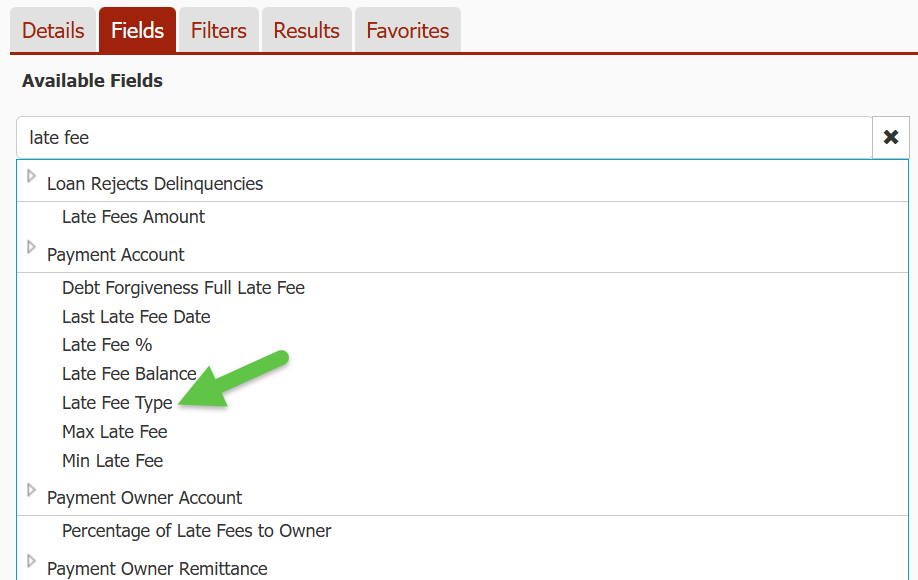
- Custom Reporting — Late Fee Type is available as a Payment Account field
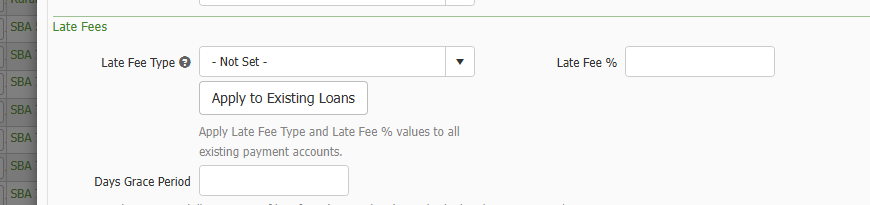
Late Fee Type options
The Late Fee % is now applied to one of three bases. Pick the one that matches the language in your note.
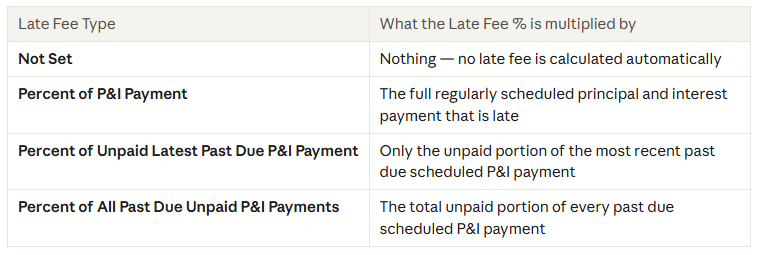
*Other fees are never included in the calculation base — only scheduled principal and interest.
Examples
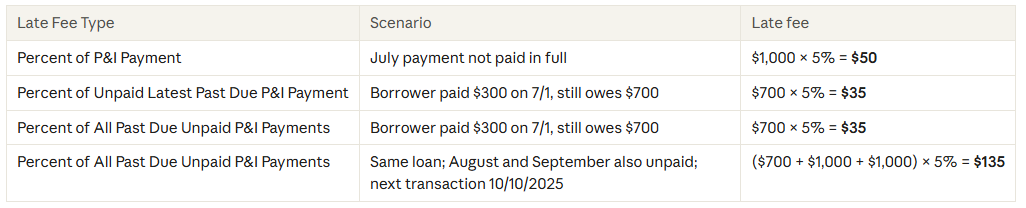
All three examples use a $1,000 monthly P&I payment due 7/1/2025, a 10-day grace period, a 5% Late Fee %, and a transaction on 7/12/2025.
|
|
The last two rows show the difference: with only one payment behind, "Unpaid Latest" and "All Past Due" give the same result. Once several payments are behind, "All Past Due" charges on the full past due P&I balance.
How to set it up
Late Fee Type and Late Fee % always go together: if you enter one, Ventures requires the other.
Set a default for a loan type
- Go to Gear icon > Reference > Loan > Loan Types and select the loan type.
- Open the Payments Settings tab and find Late Fee Settings.
- Choose a Late Fee Type (first field, top left) and enter the Late Fee % to its right.
- Set Days Grace Period (now below Late Fee Type) and, if needed, Min and Max Late Fee.
- Save. New payment accounts on this loan type default to these settings.
*New loan types start with Late Fee Type set to Not Set.
Apply the loan type setting to existing loans
Changing the loan type default does not change payment accounts that already exist. To push it to them in bulk:
- On the same Payments Settings tab, select Apply to Existing Loans (below the Loan Type field).
- A Bulk Change confirmation shows how many payment accounts will be updated.
- Select Apply Changes to proceed, or Cancel.
This overwrites Late Fee Type and Late Fee % on every existing payment account for that loan type, including any you set individually.
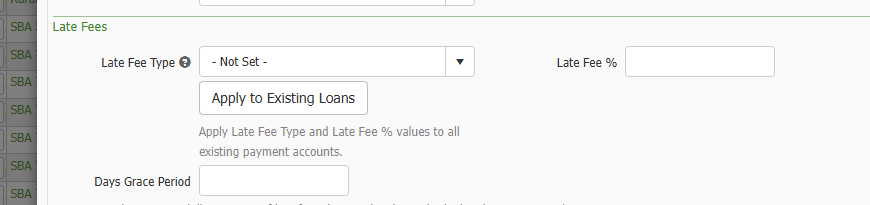
Override on a single payment account
- Open the loan and go to Payments > Loan Details > Borrower Fee Settings.
- Late Fee Type is the first field; it defaults to the loan type's setting.
- Change the type and Late Fee % as needed. Day Grace Period now sits below Max Late Fee.

Boarding by import or API
|
|
|---|
|
|
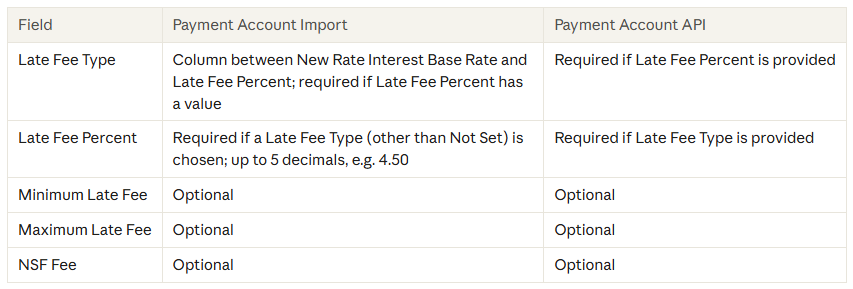
Leave Late Fee Type and Late Fee Percent blank to use the loan type's defaults. On API update calls, a field you leave out keeps its current value. Option names in both match the dropdown labels above; the Import Help tab lists them.
How late fees are assessed
A late fee is calculated when a transaction posts after a scheduled P&I payment has passed its grace period unpaid. Ventures then:
- Finds the base for the payment account's Late Fee Type.
- Multiplies it by the Late Fee %.
- Raises the result to the Minimum Late Fee or lowers it to the Maximum Late Fee, if those are set.
*If Late Fee Type is Not Set, no late fee is charged automatically.
Reporting
In Custom Reporting, add Late Fee Type from the Payment Account group. It shows the same labels as the dropdowns.
FAQ and troubleshooting
I can't save — it says Late Fee % (or Late Fee Type) is required. The two fields are required together. Enter both, or clear both.
No late fee was charged on a late loan. Check that the payment account's Late Fee Type isn't Not Set and that a Late Fee % is entered. Also confirm the grace period has passed and a transaction has posted since.
I changed the loan type, but existing loans still use the old type. Loan type settings only default new payment accounts. Use Apply to Existing Loans on the loan type, or edit accounts one at a time.
Are other fees included in the late fee base? No. Only scheduled principal and interest are used.
My import rejected the Late Fee Type value. Use the exact option names listed in the import help tab. See the Payment Account Import Help tab.

