46
46

VENTURES
7(a) Lenders - ETRAN Related updates
With recent SBA changes, we have made some updates to rate indexes and adjustment periods to be aware of.
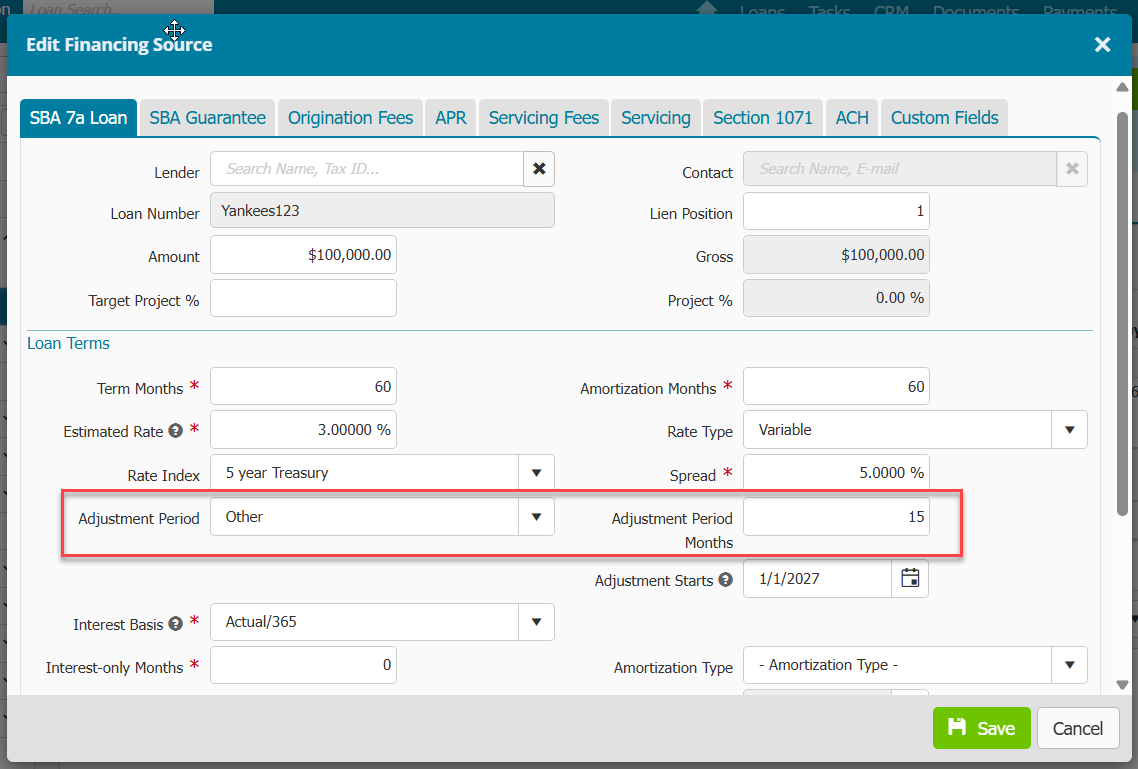
- In the Financing menu > Financing Sources > Financing Source record > a new field called “Adjustment Period Months” was added. The field is locked until the user selects "Other" in "Adjustment Period" dropdown field. The user would then select the number of months for adjustment periods.
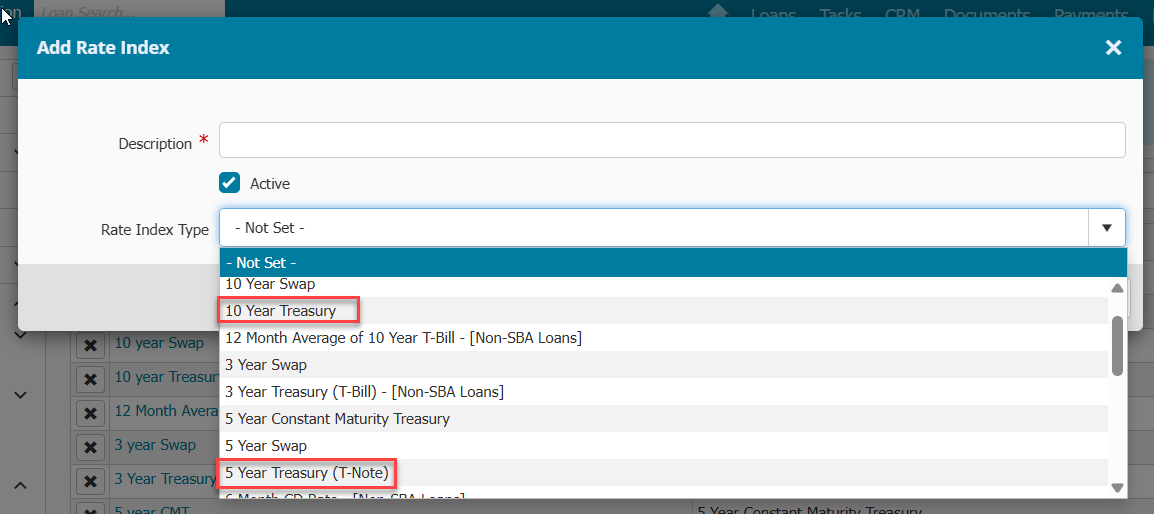
- 5 Year Treasury (T-Note) and 10 Year Treasury rate index types have been mapped to their appropriate ETRAN code. If you choose either of these rate indexes, then your "Adjustment Period" should be set to "Other" and your "Adjustment Period Months" should be equal to or greater than 12 months to avoid an ETRAN validation error. (Note - SOFR rate index type was already available and mapped previously)
7(a) Lenders - SBSS Changes
As of March 1st, Lenders are not be able to obtain an SBSS score from ETRAN via Ventures due to recent SBA changes. The SBSS score was obtained via our Check Score feature for SBLC lenders, and done via our Run Credit option for non SBLC lenders. Ventures has removed SBSS references from system Credit Memos and UI screens.
Possible lender action:
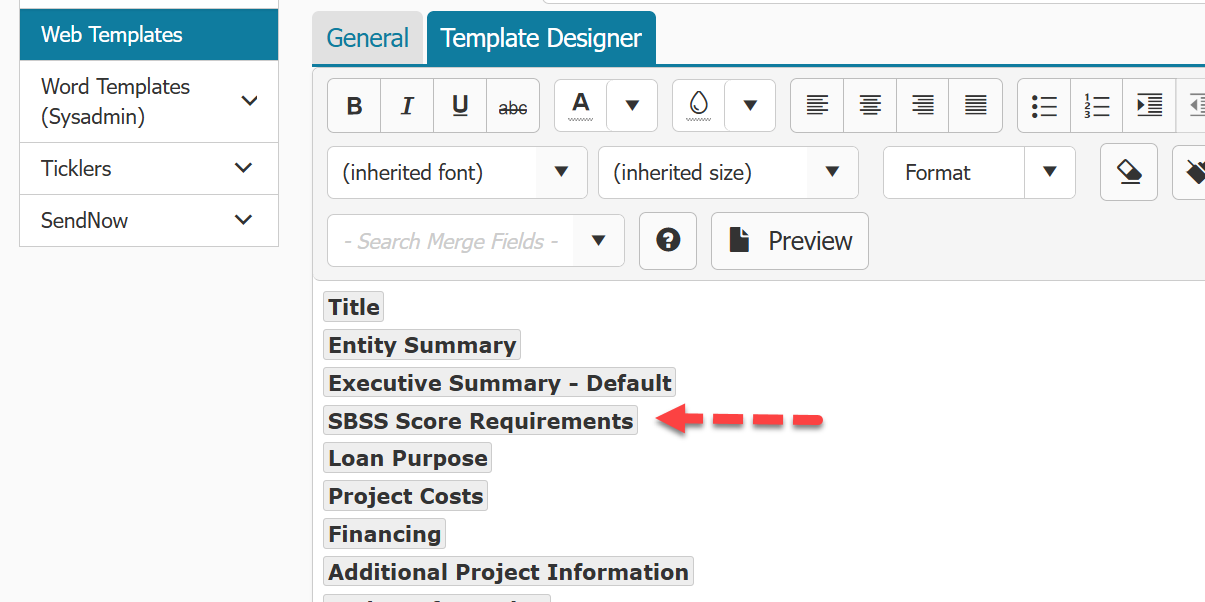
Remove SBSS merge field from custom memos or documents.
New Import to add Entities to a Loan record
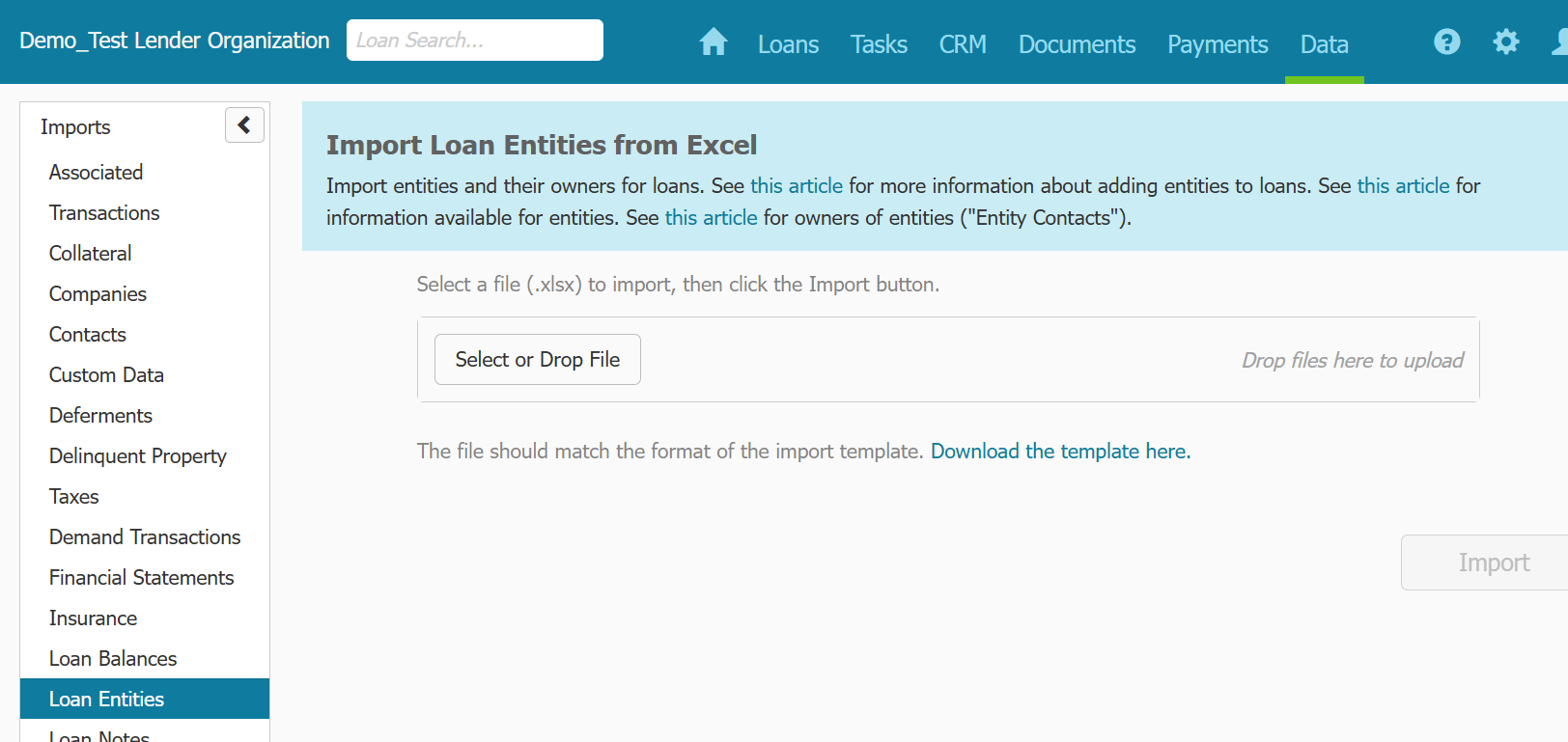
The template can be found in Data > Imports > Loan Entities menu and uploaded in the same place. This can be helpful to users that need to import entities into existing loan records where you have collected data outside the system and want to get it into Ventures.
Based on how the data needs to be saved in the database, the user will have to enter the Entities in a specific order in order to get the import to work.
For instance, Entity B owns Entity A. In order to get the import to work, you have to put Entity B’s data in the row before Entity A.
If you peel the onion further and have Entity C owning Entity B that owns Entity A, then the order in the spreadsheet would be C > B > A.